To display a Beacon until each user clicks the Beacon, set the Beacon to disappear on click and then set no end date for the Beacon collection. Whatfix stops displaying the Beacon to each user after that user clicks the Beacon. The Beacon continues to appear for every user who has not clicked the Beacon yet.
For example, you add a Beacon to highlight a new feature in your application. Users on vacation during the release see the Beacon when they return. Whatfix no longer displays the Beacon to users who already clicked the Beacon.
Expand the following accordion for more details:
Display a Beacon until each user clicks the Beacon
Use the following steps to create a Beacon collection whose Beacon disappears when users click the Beacon:
-
Log in to the application where you want to create content, and then launch Whatfix Studio.

-
On Whatfix Studio, click Beacon.

-
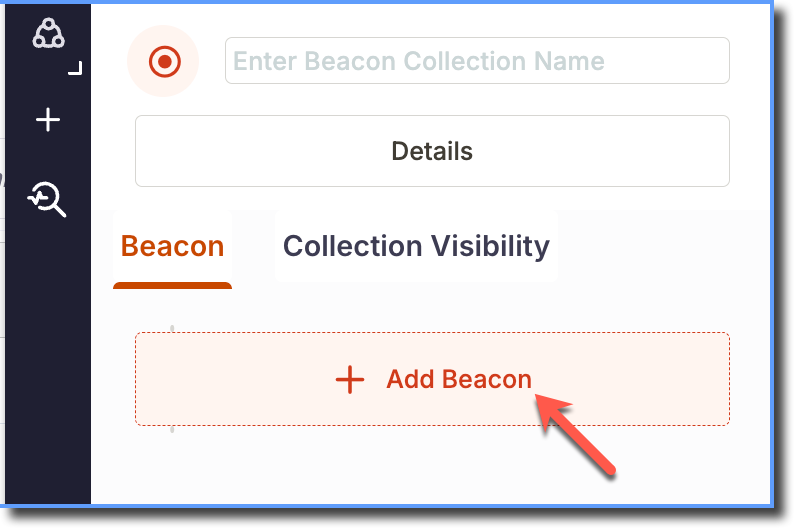
Enter a name for the Beacon Collection.

Click + Add Beacon to create a new Beacon.
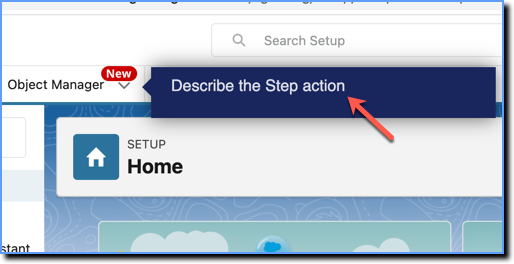
Select the element on the application and enter a description for the Beacon.
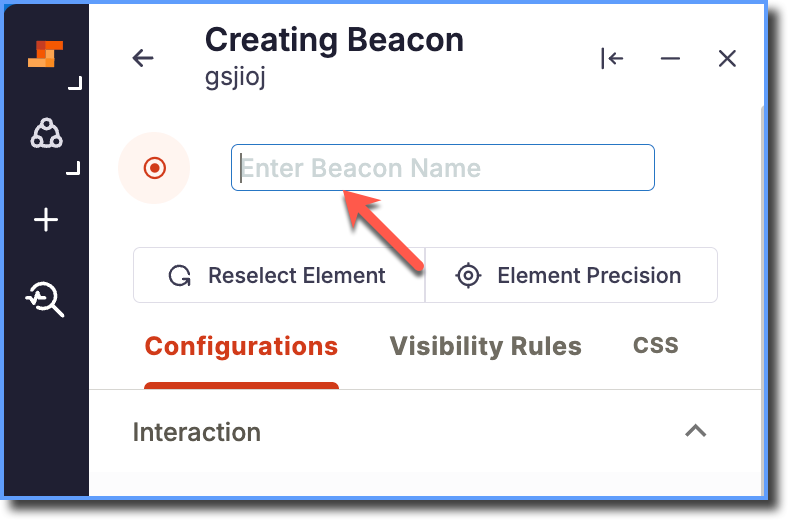
On Studio, enter the name of the Beacon.
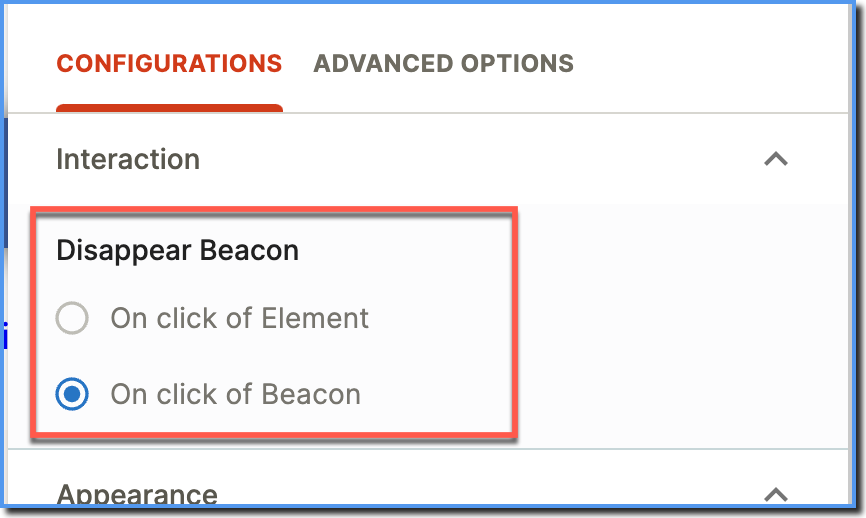
In the CONFIGURATIONS tab, expand Interaction, and then, under Disappear Beacon, select On click of Beacon.
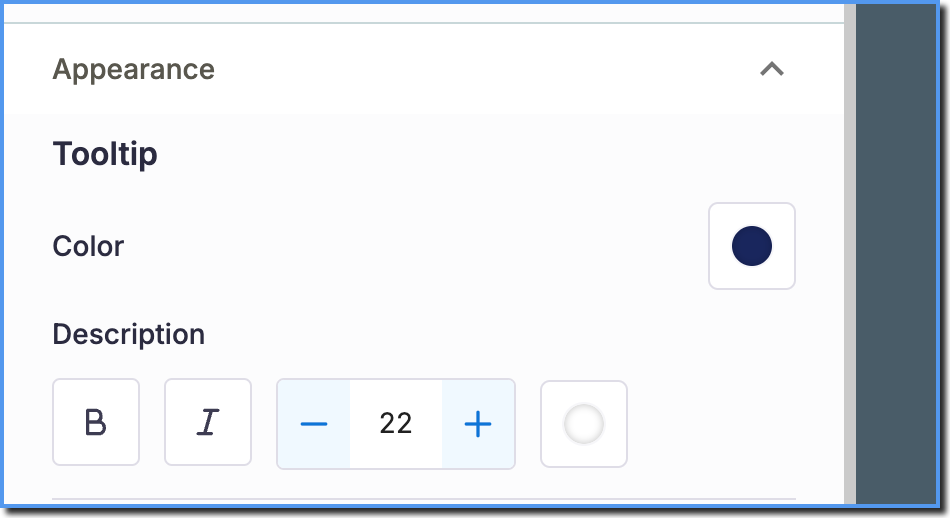
In Appearance, customize the look of the Beacon.
Click Save Beacon.
To save the Beacon collection, click Save Beacon.
Use the following steps to set the Visibility Rules of the Beacon collection without an end date:
-
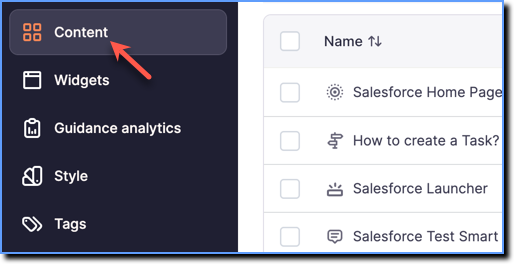
On the Whatfix Guidance dashboard, click Content.
-
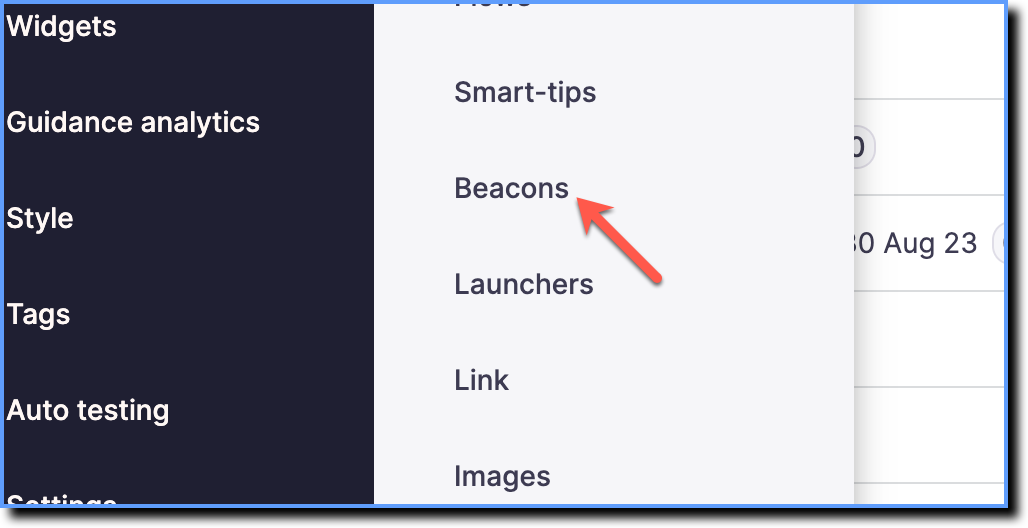
Click Beacons.
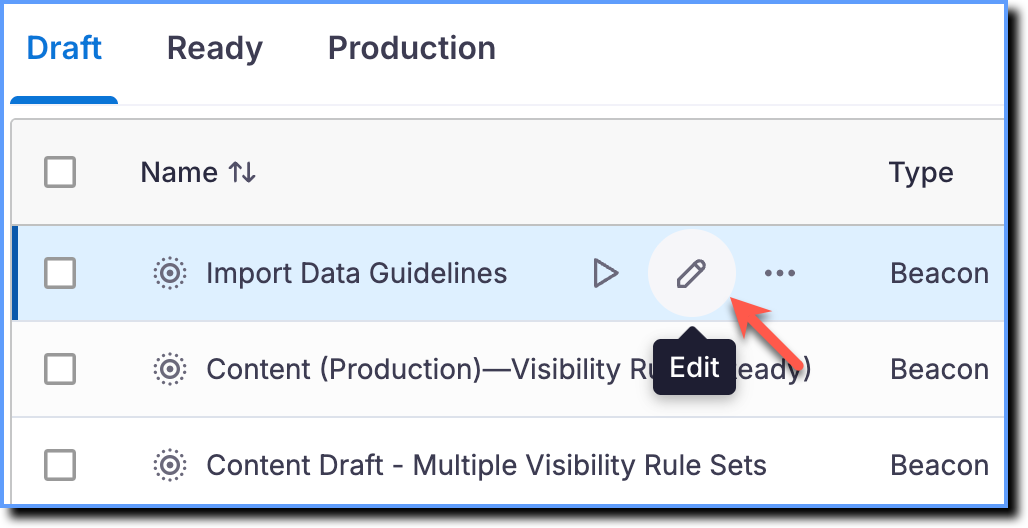
Hover your cursor over the Beacon collection, and then click Edit.
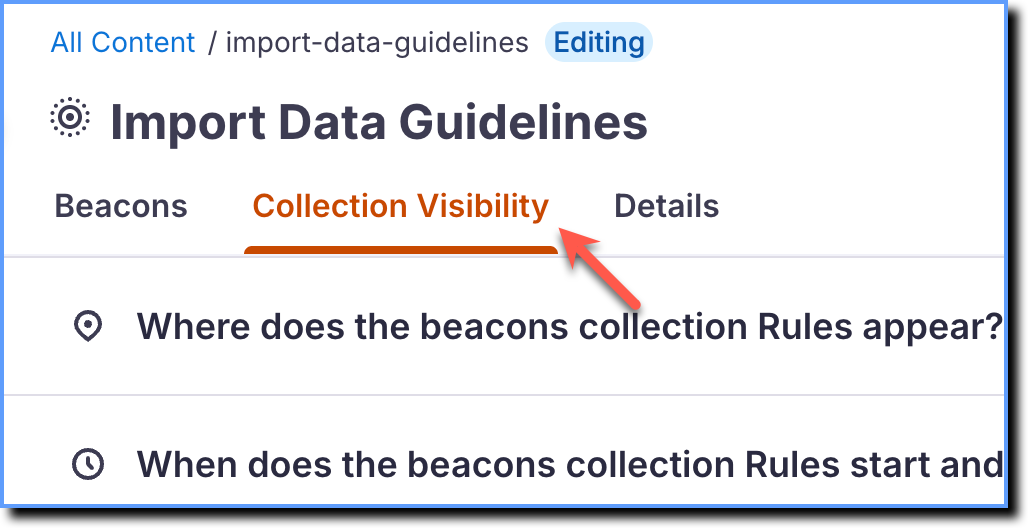
Click Collection Visibility.
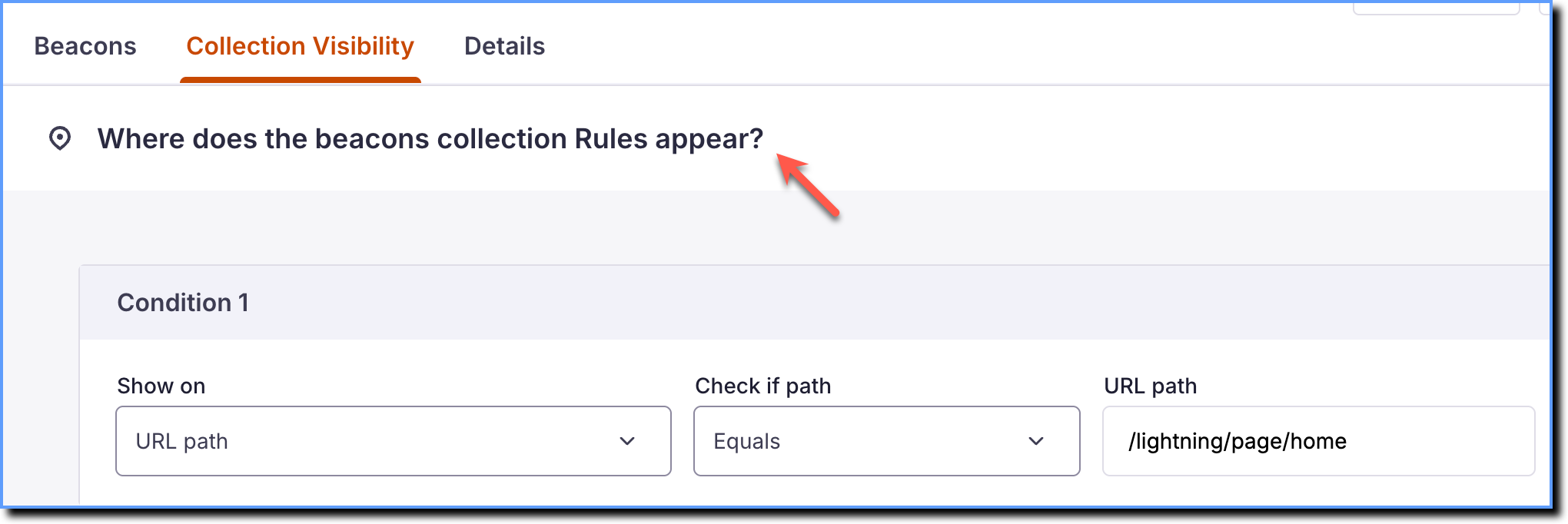
Expand Where does the beacons collection Rules appear?, and then set the URL and page tag conditions. For more information, see Set Where your Widget or Content appears.
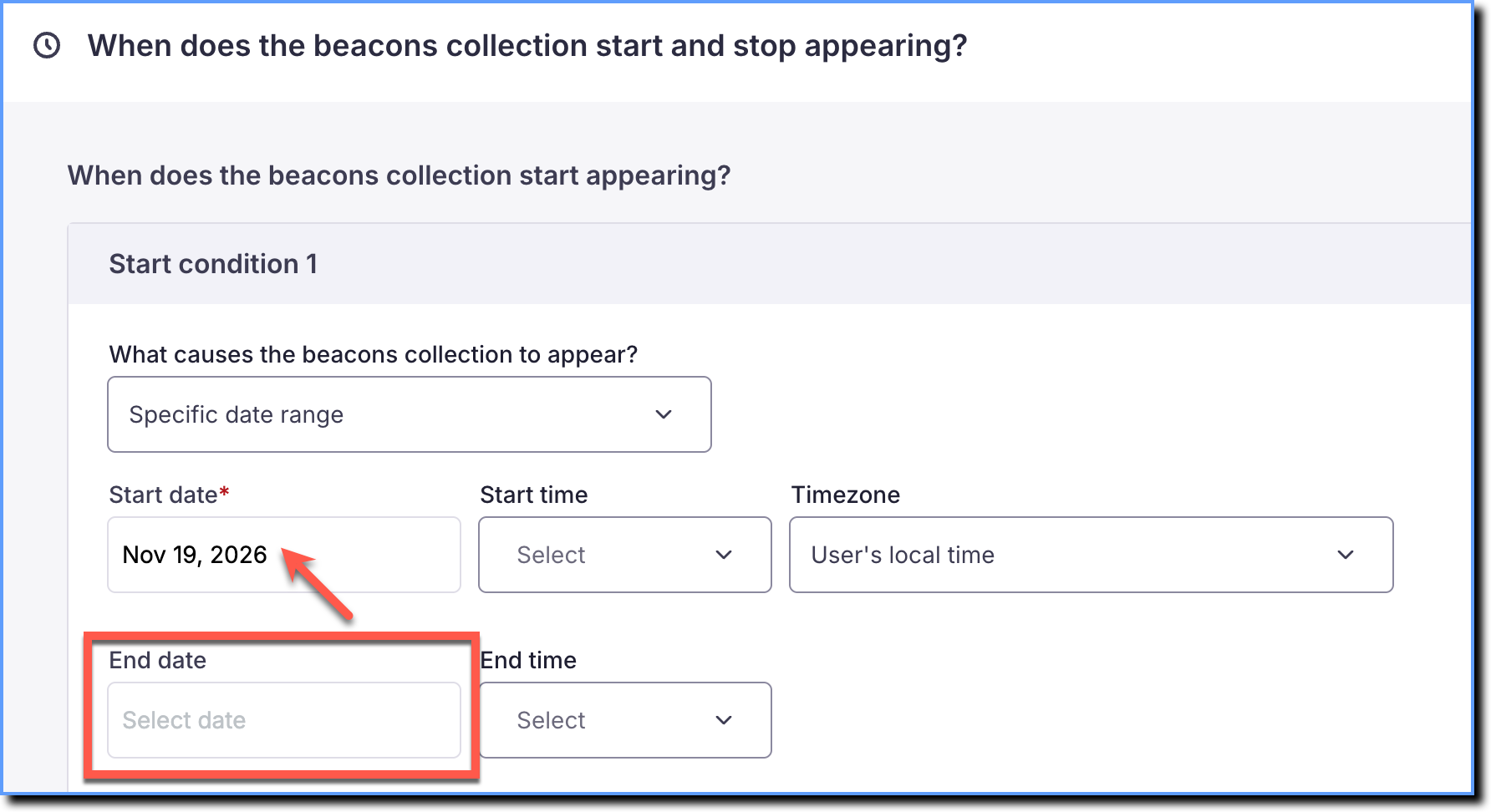
Expand When does the beacons collection Rules start and stop appearing?, select a Start date and leave the End date field blank.
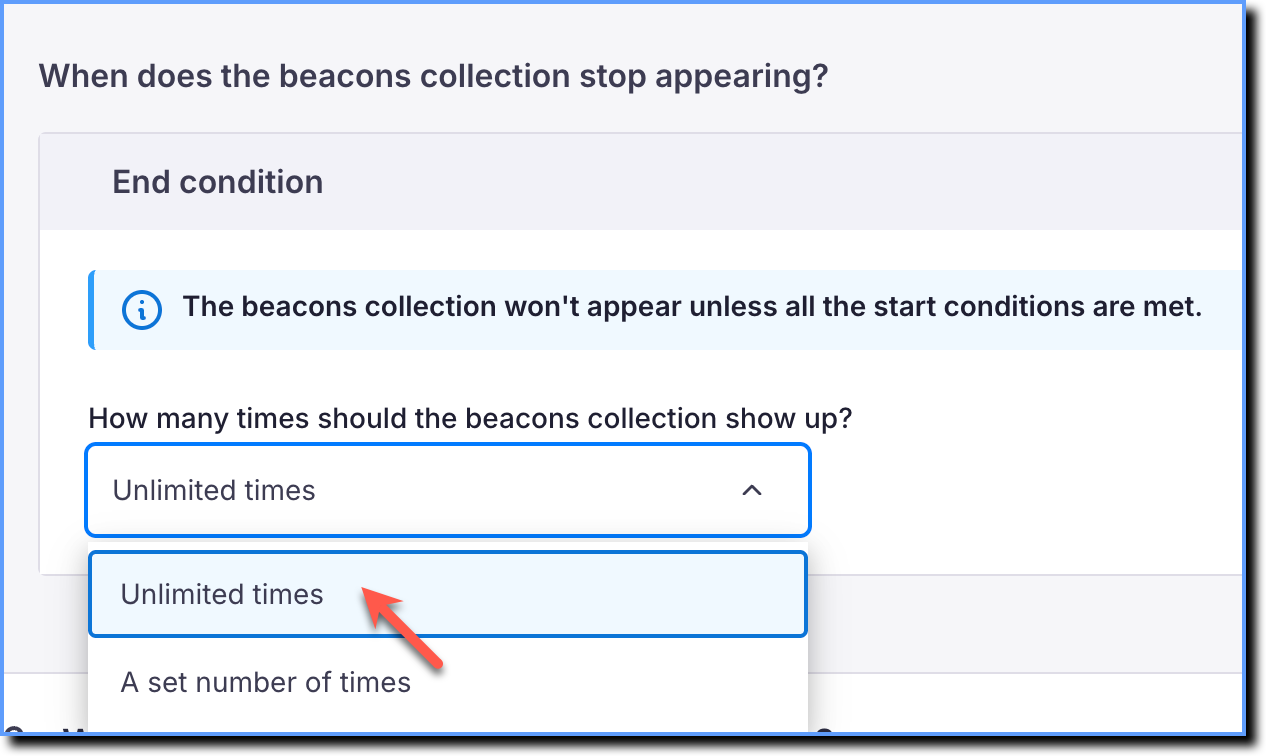
Set How many times the beacon collection show up? to Unlimited times.
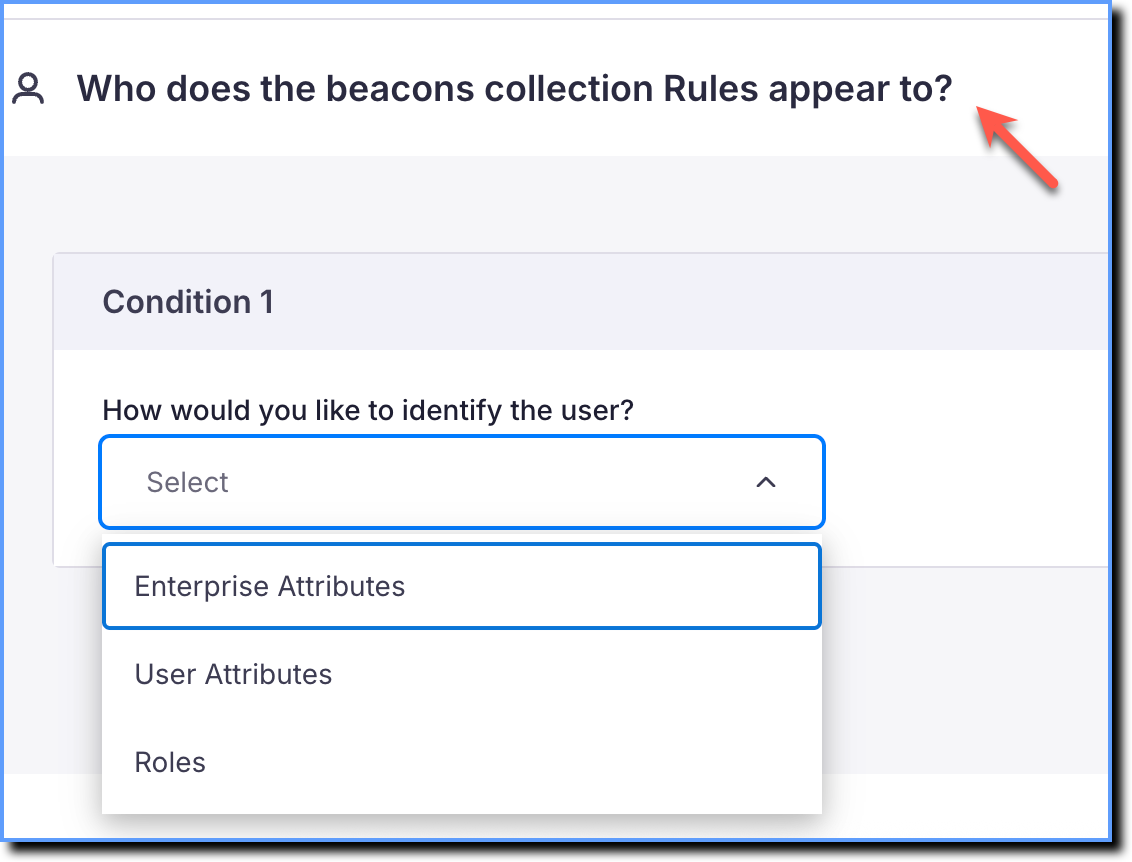
To display the Beacon to specific users only, expand Who does the beacons collection Rules appear to?, and then set the user conditions. For more information, see Set Who can see your Widget.
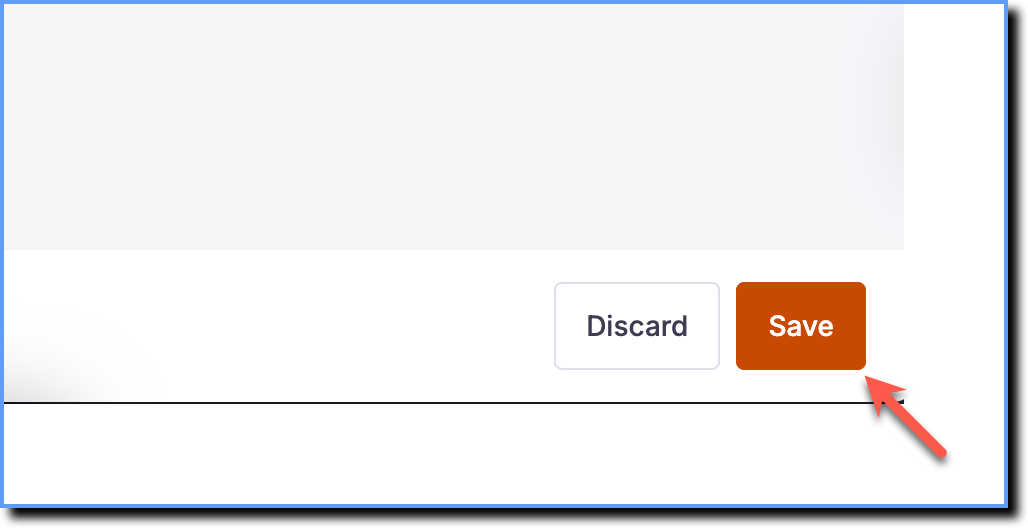
Click Save.
Note:
The Beacon appears to users only after you move the Beacon collection to the Production stage.
For more information, see Create a Beacon.
Info:
When you set On click of Beacon and Unlimited times, the Beacon appears without an end date until you remove the Beacon collection from Production. For more information, see Set what causes your Widget to stop appearing.
Whatfix identifies each user by an ID in the browser's local storage.
When the browser loses that ID, Whatfix displays the Beacon again to users who already clicked the Beacon.
The browser loses the ID when users clear cookies and local storage, open an incognito window, or IT policy clears local storage. For more information, see How does Whatfix identify users on the application?