When you capture a Launcher or Blocker step, Whatfix associates the step with the Page Tag of that page. By default, the step displays only on pages that share the same Page Tag.
The Page Tag controls where the step displays, even when another page contains the same CSS selector.
For example, Page 1 has Tag 1, and Page 2 has Tag 2. Both pages contain the .nav-container element. A step you capture on Page 1 does not display on Page 2, even when the segment is active on both pages.
With Skip Step Page Tag Filter, you can display Launcher and Blocker steps on pages with a different Page Tag from the page where you capture them. For example, you can display a step from Page 1 on Page 2 when both pages contain the .nav-container element.
The Skip Step Page Tag Filter setting changes how a step you capture on Page 1 displays on Page 2:
Note:
Skip Step Page Tag Filter applies to all Launcher and Blocker steps in your enterprise account.
Collection rules continue to control where a Launcher or Blocker step displays.
If Whatfix does not find the matching CSS selector on a page, Whatfix applies the Page Tag check to the step.
Use the following steps to skip Page Tags for Launcher and Blocker steps:
-
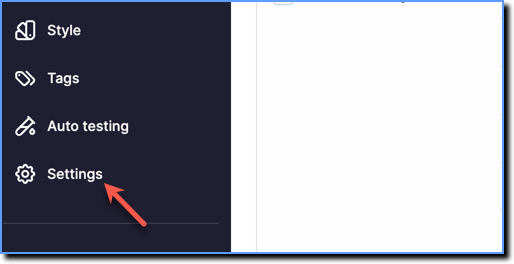
On the Whatfix Guidance dashboard, click Settings.
-
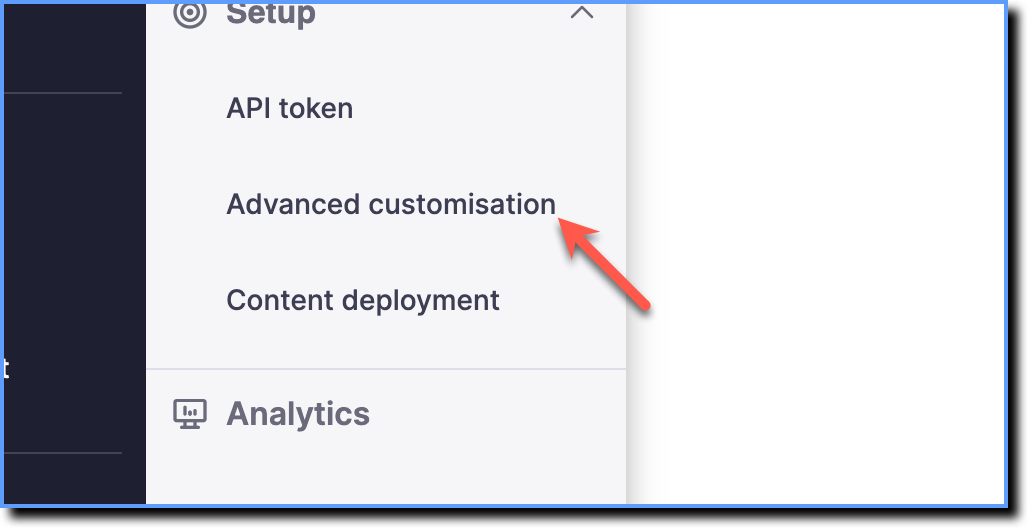
Click Advanced customisation.
-
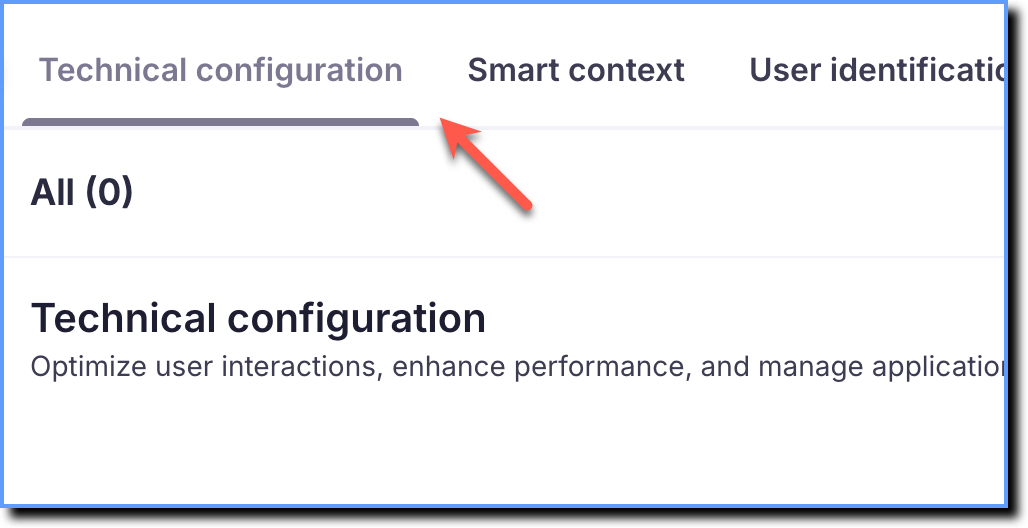
Click Technical configuration.
-
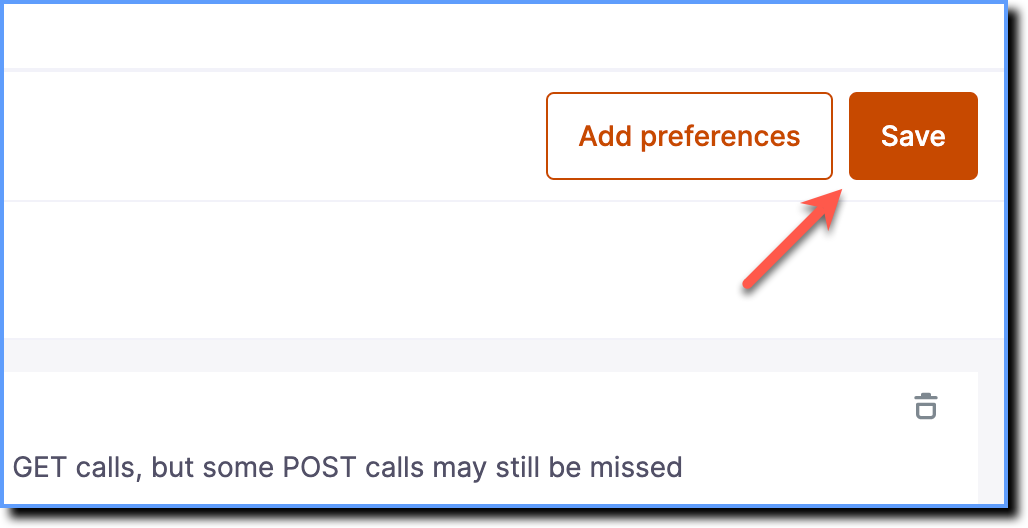
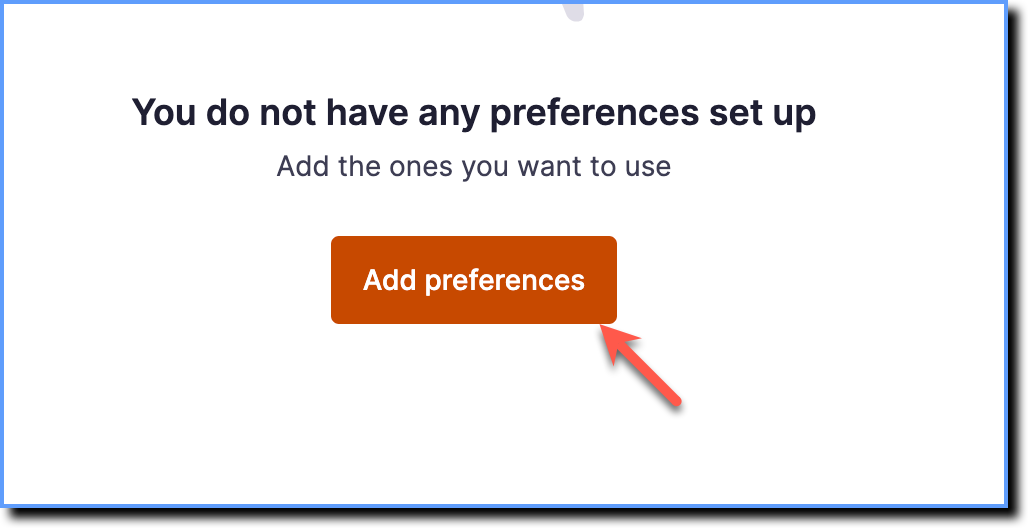
Click Add preferences.
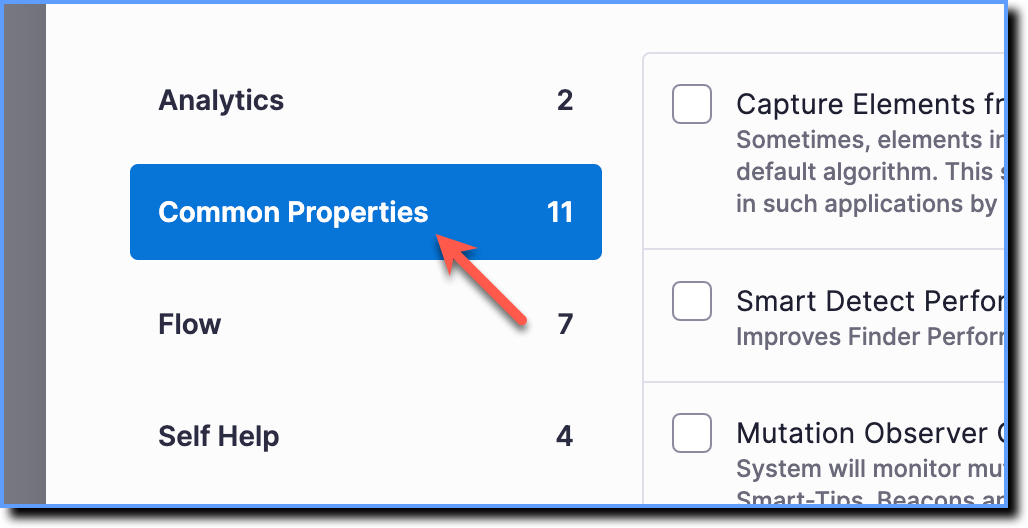
Click Common Properties.
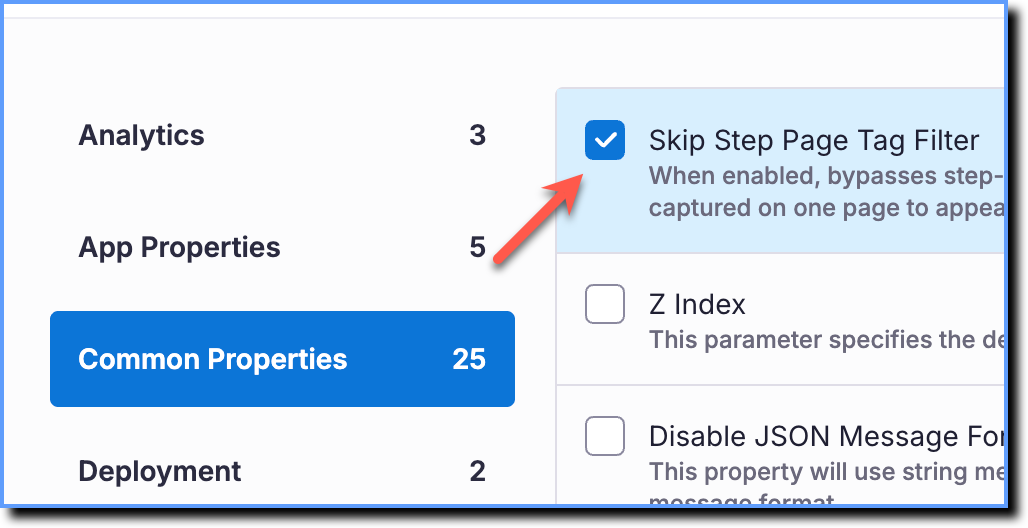
Select the Skip Step Page Tag Filter checkbox.
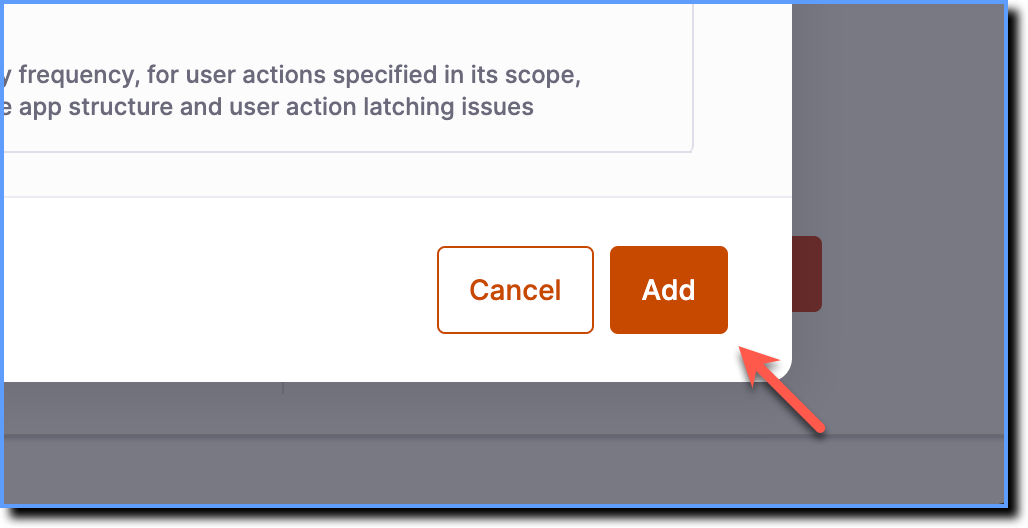
Click Add.
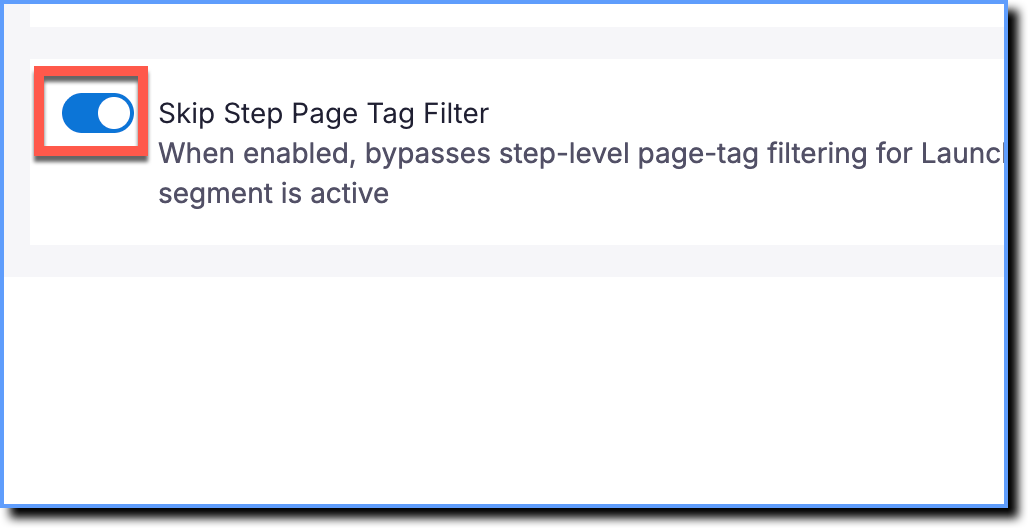
Enable the Skip Step Page Tag Filter toggle.
Click Save.