Note:
Whatfix Diagnostics is available across all Delivery modes.
If Whatfix Studio is available on the browser, open Diagnostics directly from Studio.
If Whatfix Studio is not available on the browser, Diagnostics can be opened as a standalone entity using Option + Shift + D (on macOS) or Alt + Shift + D (on Windows). For more information, see Troubleshoot content when Whatfix Studio is not available.
Overview
Whatfix Diagnostics helps you understand what happens when Whatfix Content runs on your application. It shows the current status of your content in real time, so you can determine whether Whatfix evaluates the content, finds its target element, displays it, or confirms the required interaction as complete.
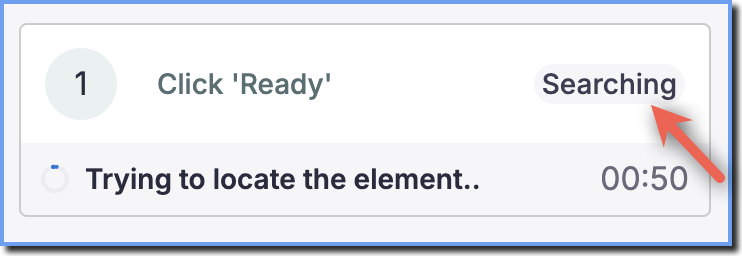
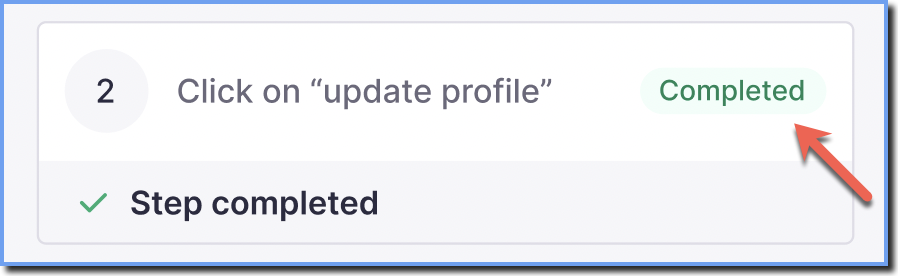
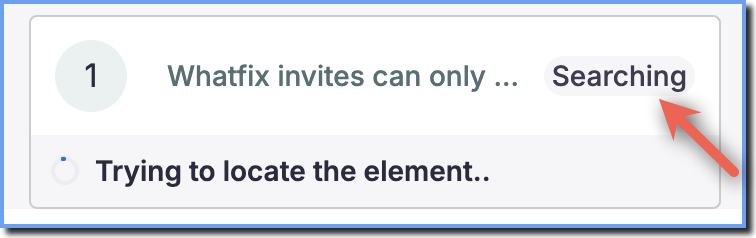
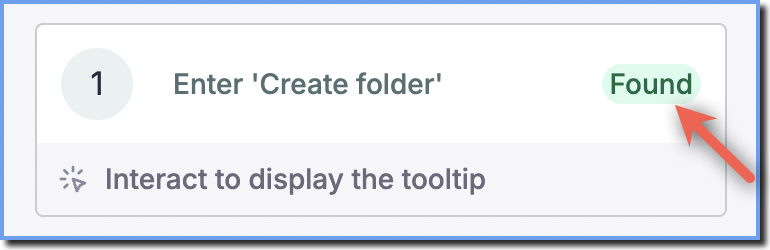
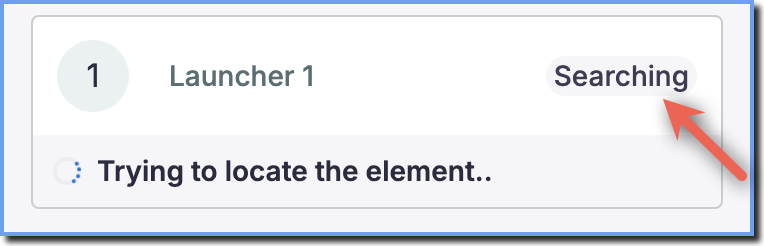
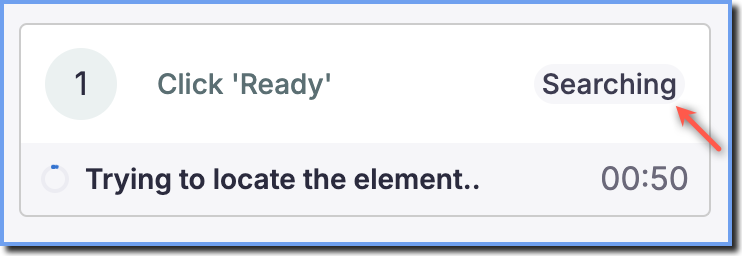
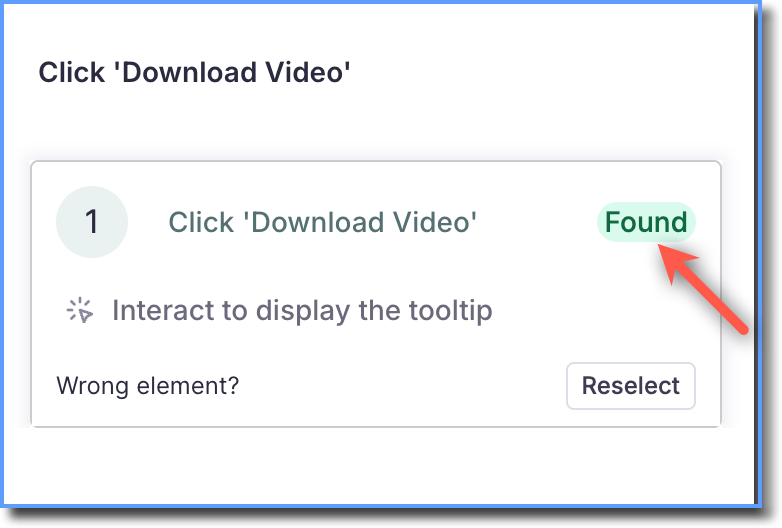
For example, a Flow might show Searching while Whatfix looks for its target element, Found when Whatfix locates the element, and Completed after you perform the required action.
Understand Different Diagnostics Statuses
The status in Whatfix Diagnostics depends on the type of content you troubleshoot. The following table gives you a quick overview of the different statuses:
Status | What does this mean? | What should you expect? |
|---|---|---|
Active | Whatfix evaluates the content on the page and determines that it is active. | The content is active and can proceed based on its configured conditions. |
Not active | Whatfix evaluates the content on the page and determines that it is not active. | Review the content's activation conditions if you expect the content to be active. |
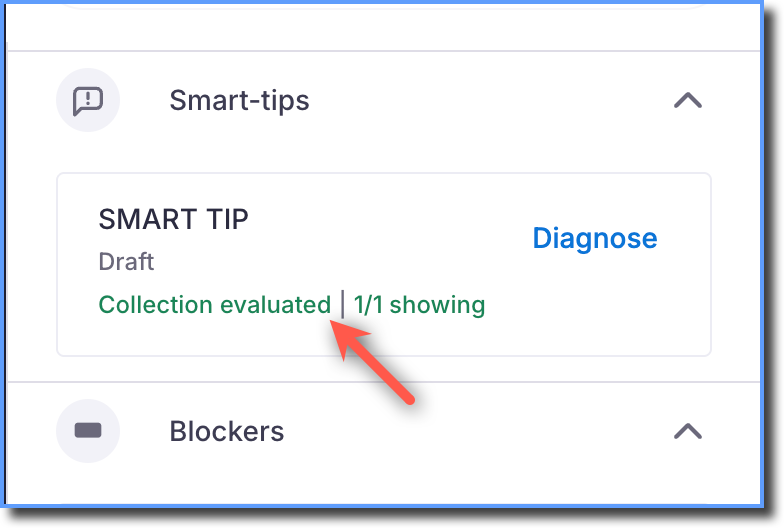
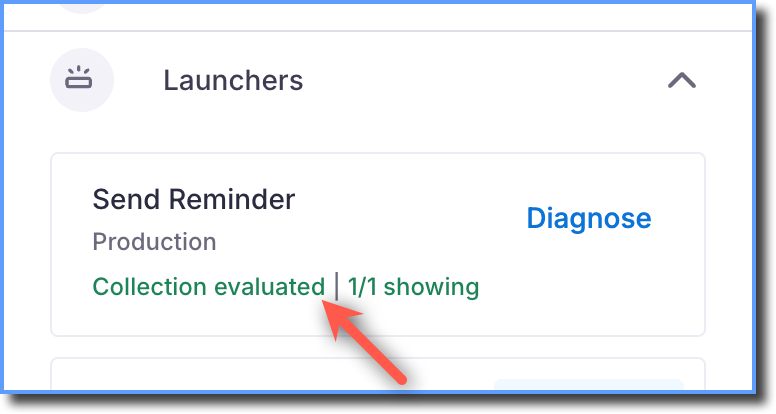
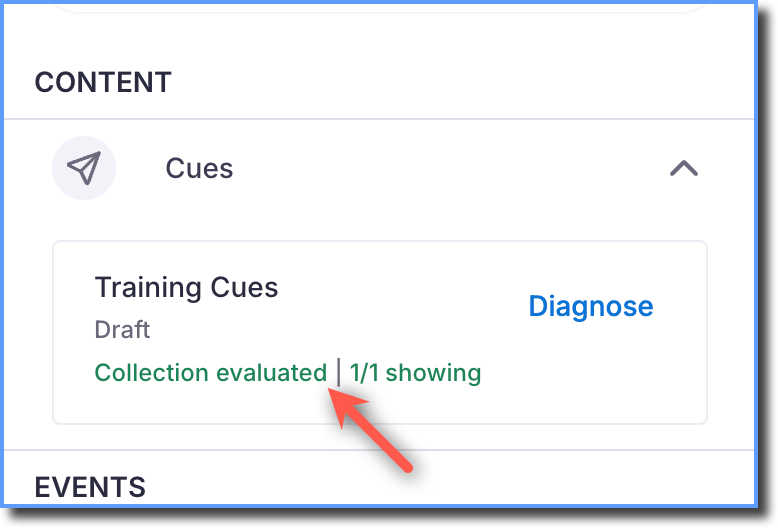
Collection evaluated | Whatfix evaluates the content on the page. | Whatfix can proceed with the next stage of processing. |
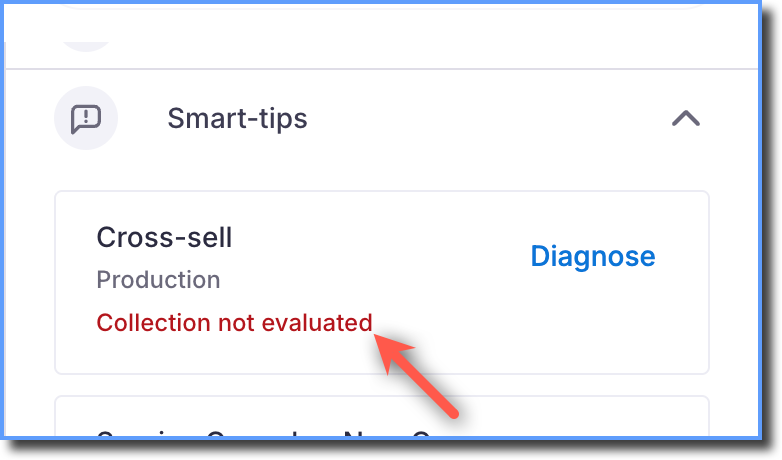
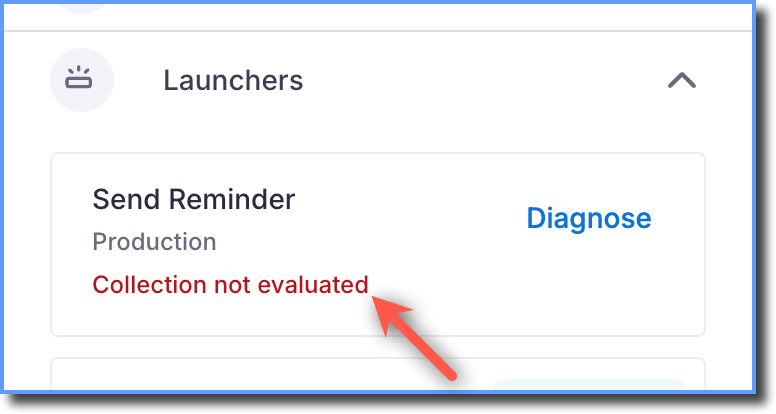
Collection not evaluated | Whatfix does not evaluate the content on the page. | Review the diagnostic information if you expect Whatfix to evaluate the content. |
Searching | Whatfix is searching for the target element associated with the content or step. | The status changes to Found when Whatfix locates the target or Not found if Whatfix cannot locate it. |
Found | Whatfix successfully locates the target element. | Whatfix waits for the required interaction or condition. Found does not necessarily mean that the content is visible. |
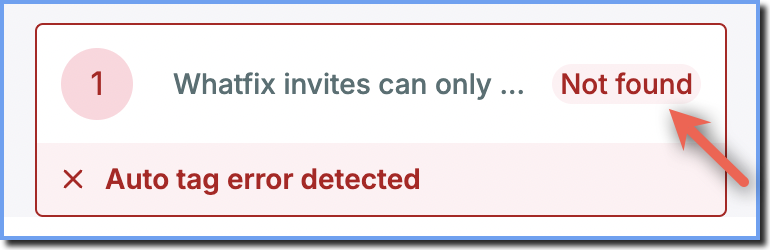
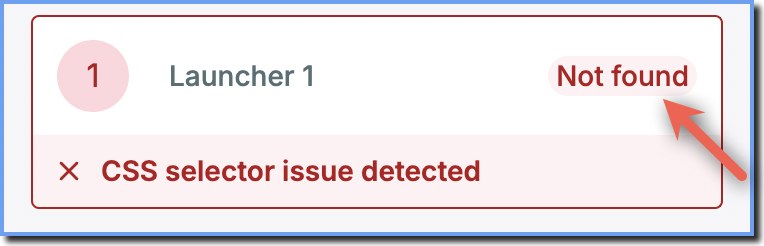
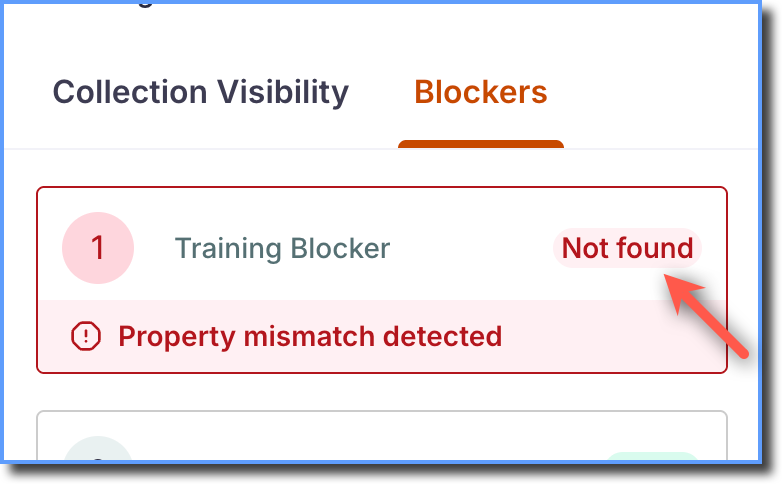
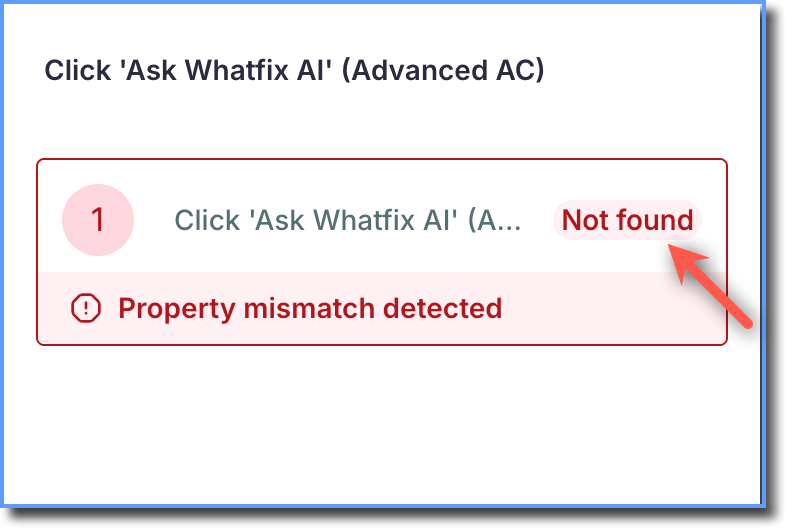
Not found | Whatfix cannot find the target element. | Check the target element, URL, Tags, and target configuration. |
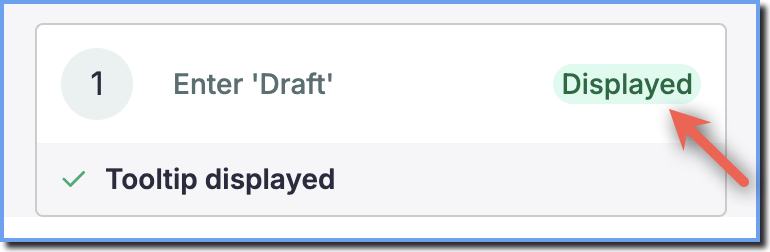
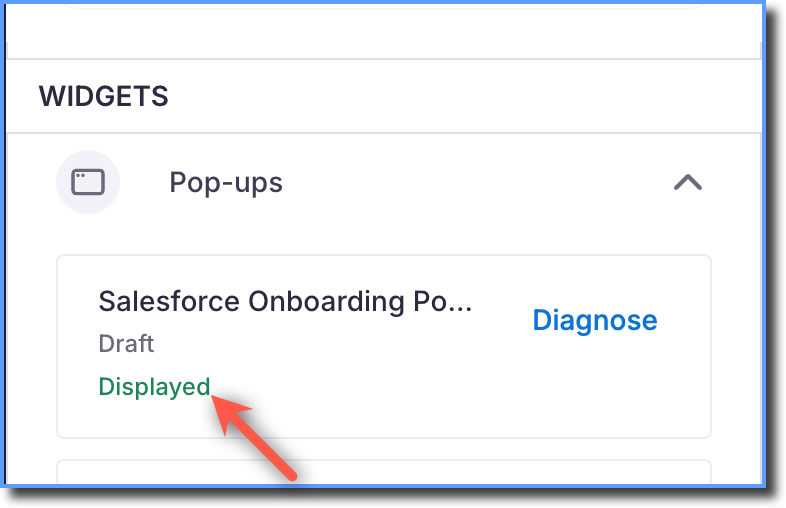
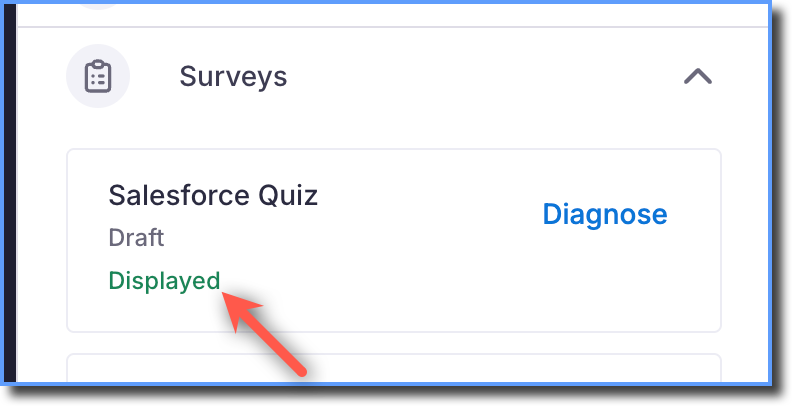
Displayed | Whatfix displays the content because the page meets the required conditions. | Validate that the content behaves as you expect. |
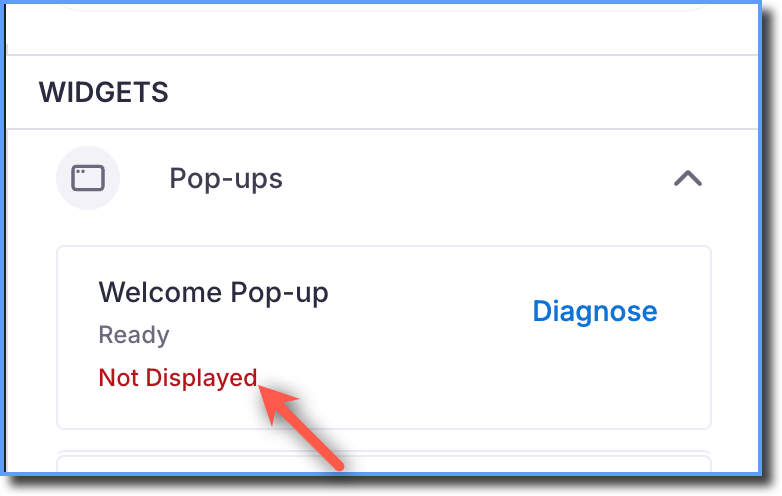
Not Displayed | Whatfix does not display the content because the page does not meet one or more required conditions. | Check Visibility Rules, precedence, occurrence limits, and other display conditions. |
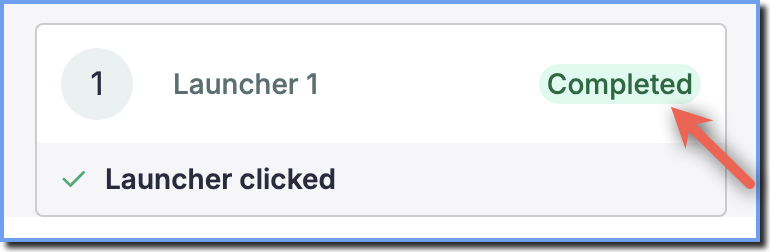
Completed | Whatfix marks the required interaction or step as complete. | For multi-step content, Whatfix can proceed to the next step. |
Snoozed | Whatfix temporarily suppresses the Cue because it is within its cooldown period. | The Cue can appear again after the cooldown period ends. |
Diagnostics Statuses by Content Type
Use the following table to identify which statuses you can see for each content type:
Content Type | Status | What does this mean? |
|---|---|---|
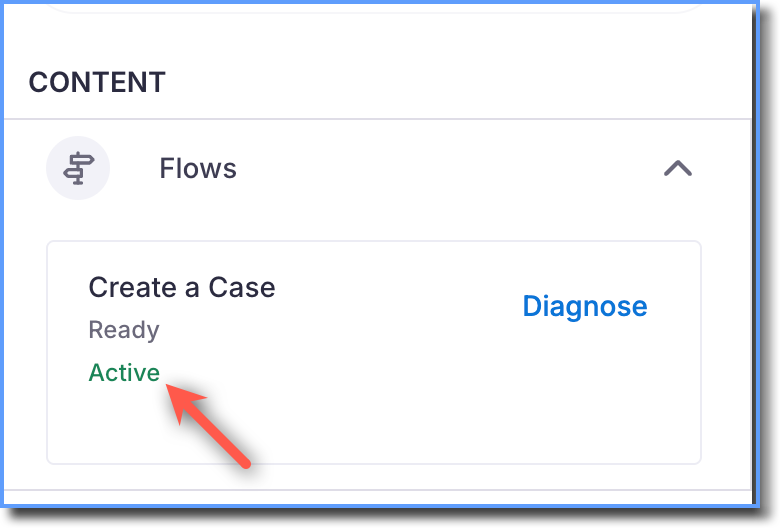
Flows | Active |
Whatfix evaluates Flows on the page and displays the status as Active. |
Searching |
Whatfix searches for the target element associated with the Flow or step and displays the status as Searching. | |
Found |
Whatfix locates the target element, displays the status as Found, and waits for the required interaction. | |
Completed |
Whatfix marks the step as Completed after the required interaction. | |
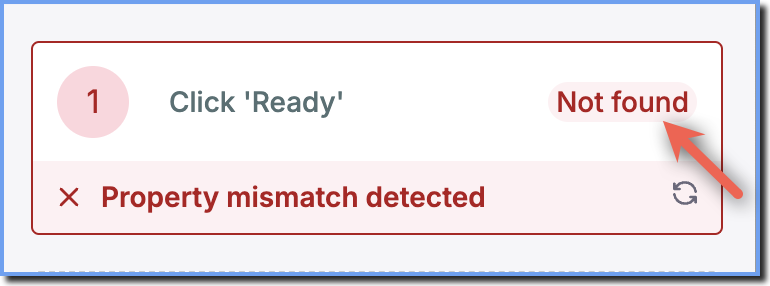
Not found |
Whatfix cannot find the target element and displays the status as Not found. | |
Beacons | Collection evaluated |
Whatfix evaluates Beacons on the page and displays the status as Collection evaluated. |
Collection not evaluated |
Whatfix displays the status as Collection not evaluated before it evaluates the Beacon. | |
Searching |
Whatfix searches for the target element associated with the Beacon and displays the status as Searching. | |
Found |
Whatfix locates the target element, displays the status as Found, and waits for the required interaction. | |
Completed |
Whatfix marks the Beacon as Completed after the required interaction. | |
Not found |
Whatfix cannot find the target element and displays the status as Not found. | |
Smart Tips | Evaluated |
Whatfix evaluates Smart Tips on the page and displays the status as Evaluated. |
Collection not evaluated |
Whatfix displays the status as Collection not evaluated before it evaluates the Smart Tip. | |
Searching |
Whatfix searches for the target element associated with the Smart Tip and displays the status as Searching. | |
Found |
Whatfix locates the target element, displays the status as Found, and waits for the required interaction. | |
Displayed |
Whatfix shows the tooltip and displays the status as Displayed when the page meets the required conditions. | |
Not found |
Whatfix cannot find the target element and displays the status as Not found. | |
Launchers | Collection evaluated |
Whatfix evaluates the Launcher collection on the page and displays the status as Collection evaluated. |
Collection not evaluated |
Whatfix displays the status as Collection not evaluated before it evaluates the Launcher collection. | |
Searching |
Whatfix searches for the target element associated with the Launcher and displays the status as Searching. | |
Found |
Whatfix locates the target element, displays the status as Found, and waits for the required interaction. | |
Completed |
Whatfix marks the Launcher as Completed after the required interaction. | |
Not found |
Whatfix cannot find the target element and displays the status as Not found. | |
Cues | Collection evaluated |
Whatfix evaluates Cues on the page and displays the status as Collection evaluated. |
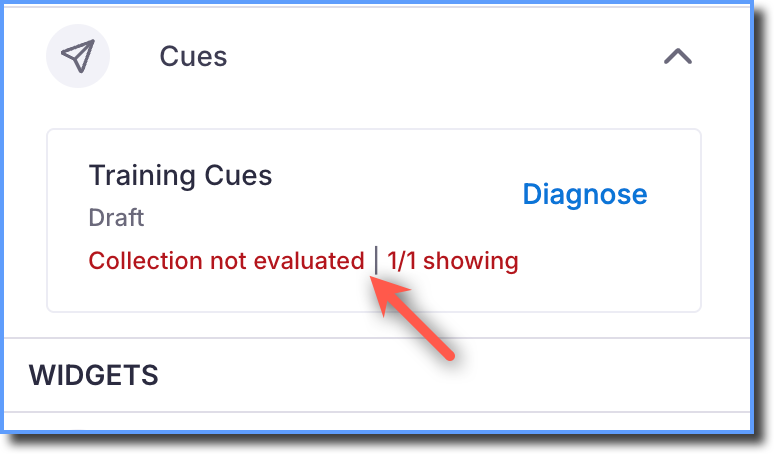
Not Evaluated |
Whatfix displays the status as Not Evaluated before it evaluates the Cue. | |
Searching |
Whatfix searches for the target element associated with the Cue and displays the status as Searching. | |
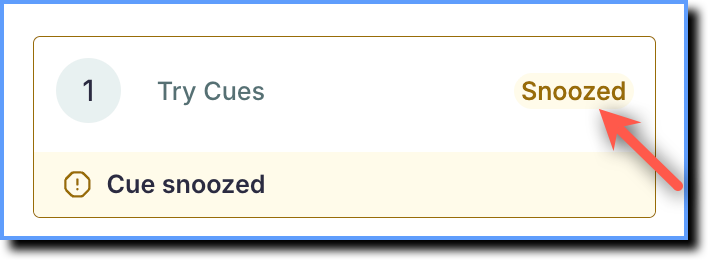
Snoozed |
Whatfix displays the status as Snoozed while the Cue is within its cooldown period. By default, Cues have a 30-minute cooldown period and can reappear after the cooldown period ends. | |
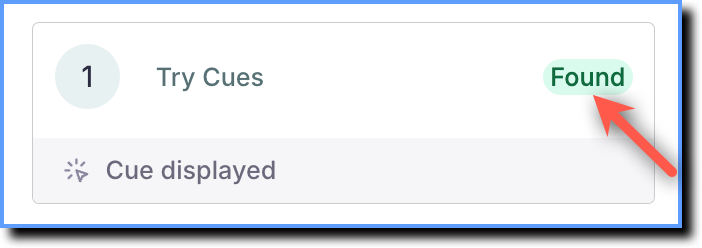
Found |
Whatfix locates the target element, displays the status as Found, and waits for the required interaction. | |
Blockers | Evaluated |
Whatfix evaluates Blockers on the page and displays the status as Evaluated. |
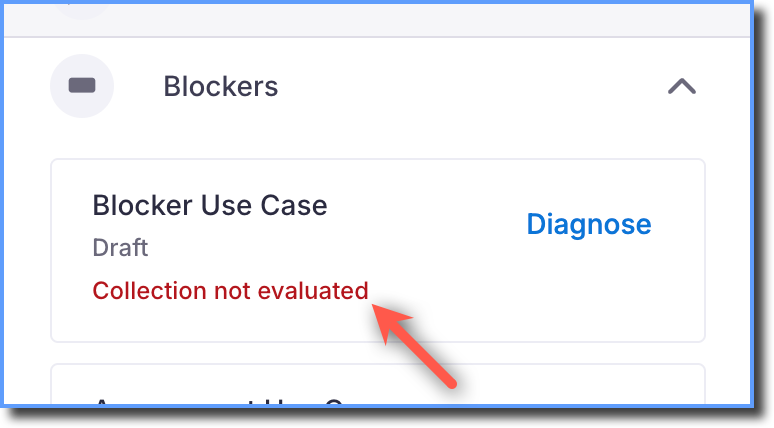
Collection not evaluated |
Whatfix displays the status as Collection not evaluated before it evaluates the Blocker. | |
Searching |
Whatfix searches for the target element associated with the Blocker and displays the status as Searching. | |
Found |
Whatfix locates the target element, displays the status as Found, and waits for the required interaction. | |
Not found |
Whatfix cannot find the target element and displays the status as Not found. | |
Pop-ups | Displayed |
Whatfix shows the Pop-up and displays the status as Displayed when the page meets all required conditions. |
Not Displayed |
Whatfix does not display the Pop-up and displays the status as Not Displayed. This can happen because of reasons such as Visibility Rules failure or low Pop-up precedence. | |
Surveys | Displayed |
Whatfix shows the Survey and displays the status as Displayed when the page meets all required conditions. |
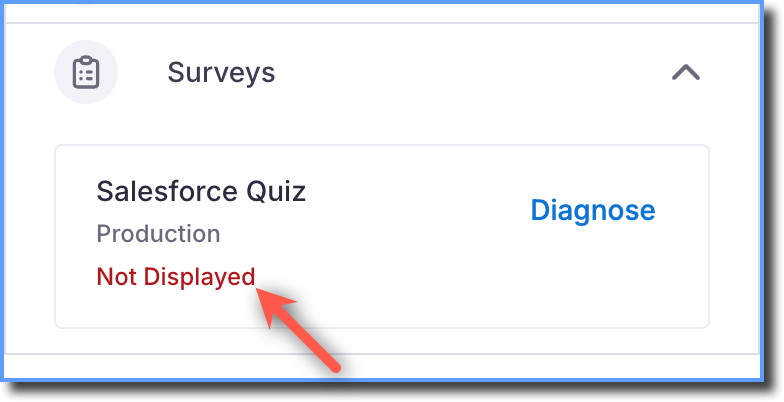
Not Displayed |
Whatfix does not display the Survey and displays the status as Not Displayed. This can happen because of reasons such as Visibility Rules failure or low Survey precedence. | |
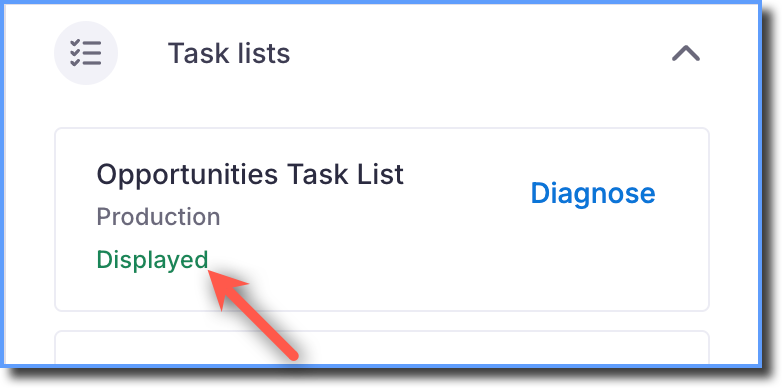
Task Lists | Displayed |
Whatfix shows the Task List and displays the status as Displayed when the page meets all required conditions. |
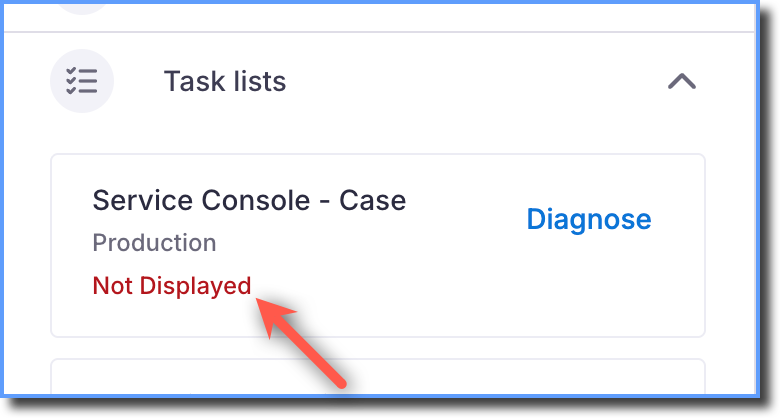
Not Displayed |
Whatfix does not display the Task List and displays the status as Not Displayed. This can happen because of reasons such as Visibility Rules failure or low precedence. | |
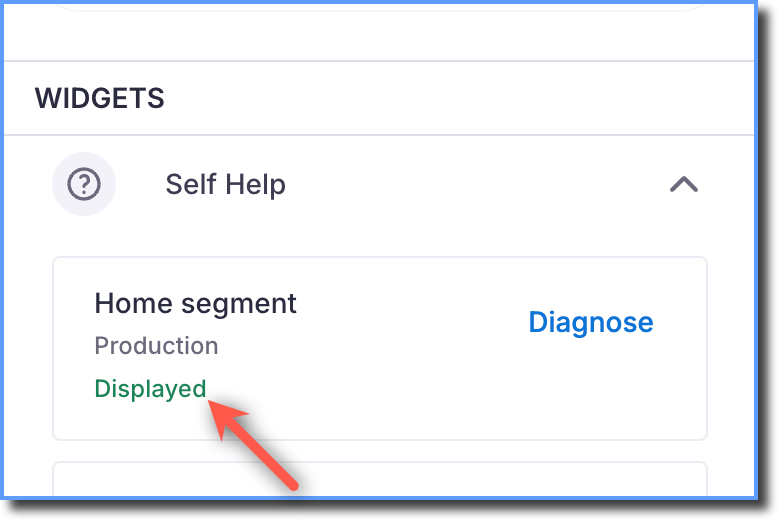
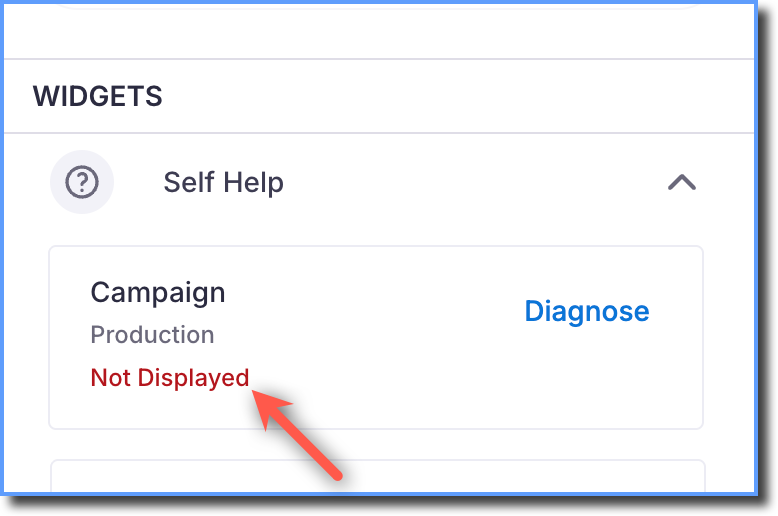
Self Help | Displayed |
Whatfix shows the Self Help segment and displays the status as Displayed when the page meets all required conditions. |
Not Displayed |
Whatfix does not display the Self Help segment and displays the status as Not Displayed. This can happen because of reasons such as Visibility Rules failure or low precedence. | |
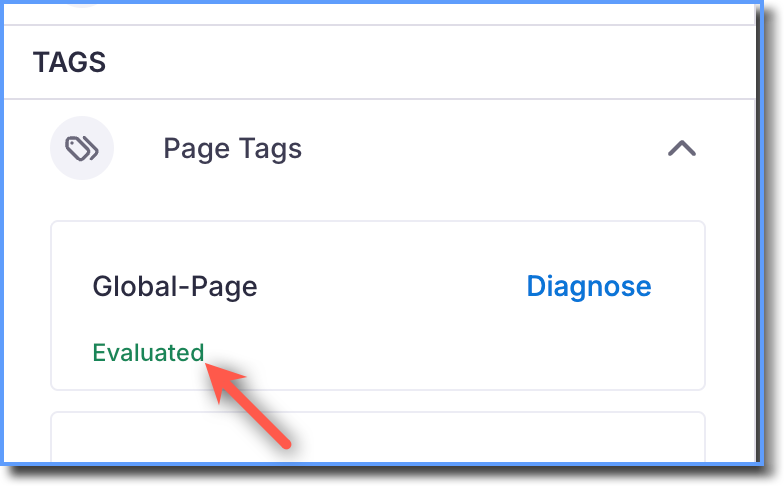
Tags | Evaluated |
Whatfix evaluates Tags on the page and displays the status as Evaluated. |
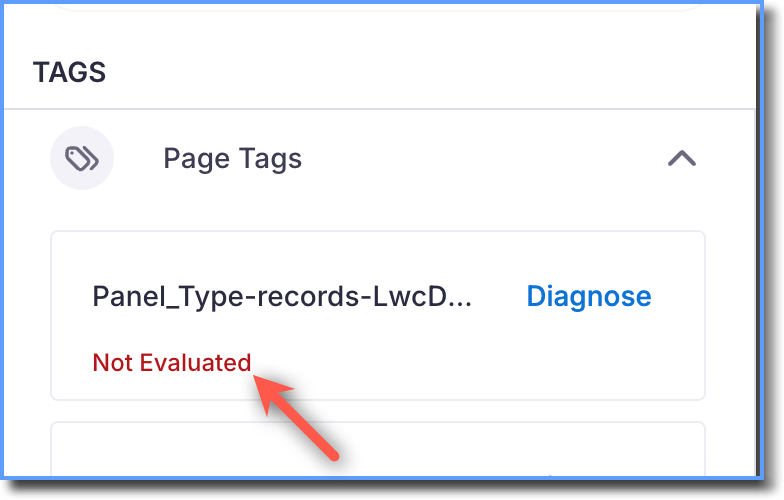
Not Evaluated |
Whatfix displays the status as Not Evaluated before it evaluates the Tag. | |
Searching |
Whatfix searches for the target element associated with the Tag and displays the status as Searching. | |
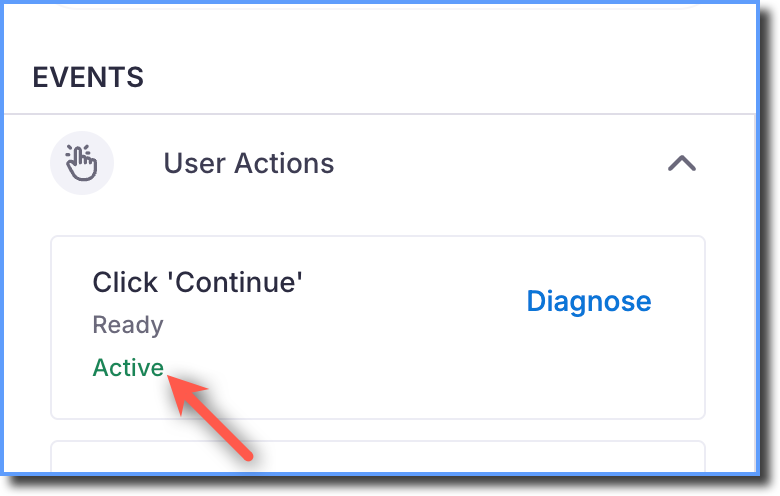
User actions | Active |
Whatfix evaluates User actions on the page and displays the status as Active. |
Searching |
Whatfix searches for the target element associated with the User action and displays the status as Searching. | |
Found |
Whatfix locates the target element, displays the status as Found, and waits for the required interaction. | |
Not found |
Whatfix cannot find the target element and displays the status as Not found. |






Issues Diagnostics Shows for Content
When content does not run or display as expected, Diagnostics also shows the issue inside the content or segment. Use the following tables to understand each issue and what you can do to fix it.
Issues shown with the Not found status
These issues apply to Flow steps, Beacons, Smart Tips, Launchers, Blockers, and User actions.
Issue | What does this mean? | What should you do? |
|---|---|---|
Property mismatch detected | Whatfix cannot find the target element because the properties it uses to identify the element have changed or cannot be found on the page. These can be the properties Whatfix captured when you created the content, or HTML properties configured manually for your application during setup. | Reselect the target element and try again. If the issue continues, contact Whatfix Support. |
Element not found | Whatfix cannot find the target element because the element has not loaded on the page. This can also happen when the element is inside an iframe that does not have Whatfix installed, or when the element takes a long time to load. | Reselect the target element and try again. If the element is inside an iframe, or the issue continues, contact Whatfix Support. |
Auto tag error detected | Whatfix cannot find the target element because an auto tag condition failed. When Smart Context is enabled, Whatfix automatically tags the page that each step is created on, and this issue means the current page does not match that tag. | Reselect the target element and try again. If the issue continues, contact Whatfix Support. |
CSS selector issue detected | Whatfix cannot find the target element because its CSS selector cannot be found on the page. This can be a CSS selector that you added, or one that Whatfix configured automatically. | Verify the CSS selector you added, or reselect the target element, and try again. If the issue continues, contact Whatfix Support. |
Display rule mismatch | Whatfix cannot find the target element because some of the display rule conditions are not met on the page. | Review the display rule conditions and update them if required. If the issue continues, contact Whatfix Support. |
Element precision rule mismatch | Whatfix cannot find the target element because some of the element precision conditions are not met on the page. | Review the element precision conditions and update them if required. If the issue continues, contact Whatfix Support. |
Step corruption detected | Whatfix cannot find the target element because the step is missing important information that Whatfix needs to identify the element. | Reselect the target element and try again. If the issue continues, contact Whatfix Support. |
Search time out | Whatfix stopped searching for the target element because the search took too long. The element may not have loaded yet, or it may not belong to this page. | Check that the element belongs on this page, and whether users need to scroll or perform an action for the element to appear. If the issue continues, contact Whatfix Support. |
Tags failure | The Tags associated with the content do not match the current page or element, so Whatfix does not evaluate the content on this page. | Check the Tags associated with the content, including the URL and element conditions, and verify that they match the page where the content should appear. |
Element not available for some users | The element is visible only to some user roles, for example, because of differences in access levels. For users who cannot see it, Diagnostics shows this as Element not found or Auto tag error detected. | Use Live Edit or the Dashboard to make the step optional, and then run the Flow again. If the content is meant only for some roles, use Visibility Rules to show it only to those users. |
Issues shown with the Not Displayed status
Issue | Applies to | What does this mean? | What should you do? |
|---|---|---|---|
Visibility rule mismatch or failure | Pop-ups, Surveys, Task Lists, Self Help, and Beacon, Smart Tip, Launcher, and Blocker collections | Whatfix cannot display the content because some of its Visibility Rules conditions are not met on the current page. Diagnostics shows whether the When, Where, or Who conditions were not met. | Review the Visibility Rules conditions shown in Diagnostics and update them if required. For more information, see Troubleshoot Visibility Rules at the step level. If the issue continues, contact Whatfix Support. |
Precedence issue | Pop-ups, Surveys, Task Lists, and Self Help | Whatfix cannot display the content because another content item of the same type took priority on the page. | Go to the Whatfix Dashboard and make sure that only one content item of that type is live on the page. |
Occurrence exhausted | Pop-ups, Surveys, and Beacon collections | Whatfix cannot display the content because it has already been displayed the set number of times. | Increase the occurrence count set for the content and try again. |
Common Troubleshooting Scenarios
If Diagnostics shows | What it indicates | What to do |
|---|---|---|
Searching for longer than expected | Whatfix is unable to complete target detection for the required element. | Verify that the target element exists on the page and that the target configuration is correct. |
Not found | Whatfix cannot find the target element. | Check the target element, URL, Tags, and whether the application UI has changed. |
Not Displayed | The content does not satisfy one or more display conditions. | Check Visibility Rules, precedence, occurrence limits, and other configured conditions. |
Not active | The content or User action is not active. | Review the conditions that determine when the content becomes active. |
Snoozed | Whatfix temporarily suppresses the Cue during its cooldown period. | Wait until the cooldown period ends before troubleshooting further. |
To troubleshoot different types of Whatfix content using Diagnostics, see the relevant article from the list below.